 PakkaHisaab
Your shop's hisaab, pakka.آپ کی دکان کا حساب — پکا۔
This guide shows you, step by step, how to keep your khata, sell, manage stock and see your profit with PakkaHisaab — on your computer or phone.اس گائیڈ میں قدم بہ قدم بتایا گیا ہے کہ پکا حساب سے کھاتہ کیسے رکھیں، سیل کیسے کریں، سٹاک کیسے سنبھالیں اور منافع کیسے دیکھیں — کمپیوٹر پر بھی اور موبائل پر بھی۔
1What is PakkaHisaab?پکا حساب کیا ہے؟
One app for your whole shop: the udhaar register (khata), the cash counter (POS), your stock and your monthly profit. Made for Pakistani shops — mobile & electronics, grocery, clothing, pharmacy and more. Works in English and Urdu.پوری دکان کے لیے ایک ایپ: ادھار کا رجسٹر (کھاتہ)، کیش کاؤنٹر (POS)، سٹاک اور مہینے کا منافع۔ پاکستانی دکانوں کے لیے بنائی گئی — موبائل و الیکٹرانکس، کریانہ، کپڑے، میڈیکل اور بہت سی دوسری۔ انگریزی اور اردو دونوں میں چلتی ہے۔
Udhaar given, money received, balance of every customer. WhatsApp reminders.ادھار دیا، رقم وصول، ہر گاہک کا باقی۔ واٹس ایپ یاد دہانی۔
Fast billing with barcode / IMEI scan, cash, JazzCash, Easypaisa, thermal receipts.بارکوڈ / IMEI سکین سے تیز بل، نقد، جاز کیش، ایزی پیسہ، تھرمل رسید۔
Know what's in every shop, track each phone by IMEI, low-stock alerts.ہر دکان کا سٹاک، ہر فون کا IMEI سے ریکارڈ، کم سٹاک کا الرٹ۔
Daily sales, profit after expenses, month by month — all calculated for you.روزانہ سیل، اخراجات کے بعد منافع، مہینہ وار — سب خود بخود۔
2Create your accountاکاؤنٹ بنائیں
- Open the app and click Start free trial / Sign Up.ایپ کھولیں اور اکاؤنٹ بنائیں پر کلک کریں۔
- Enter your name, shop name, mobile number, email and a password (at least 8 characters with letters and numbers).اپنا نام، دکان کا نام، موبائل نمبر، ای میل اور پاس ورڈ لکھیں (کم از کم 8 حروف، جن میں حروف اور نمبر دونوں ہوں)۔
- Choose a plan. Khata (Free) is free forever. Choose a Business plan if you also want POS and stock — it starts with a free trial.پلان چنیں۔ کھاتہ (مفت) ہمیشہ مفت ہے۔ اگر سیل اور سٹاک بھی چاہیے تو بزنس پلان چنیں — یہ مفت آزمائش سے شروع ہوتا ہے۔
- Click Create Account. You are logged in and your first shop is ready.اکاؤنٹ بنائیں دبائیں۔ آپ لاگ اِن ہو جائیں گے اور آپ کی پہلی دکان تیار ہو گی۔
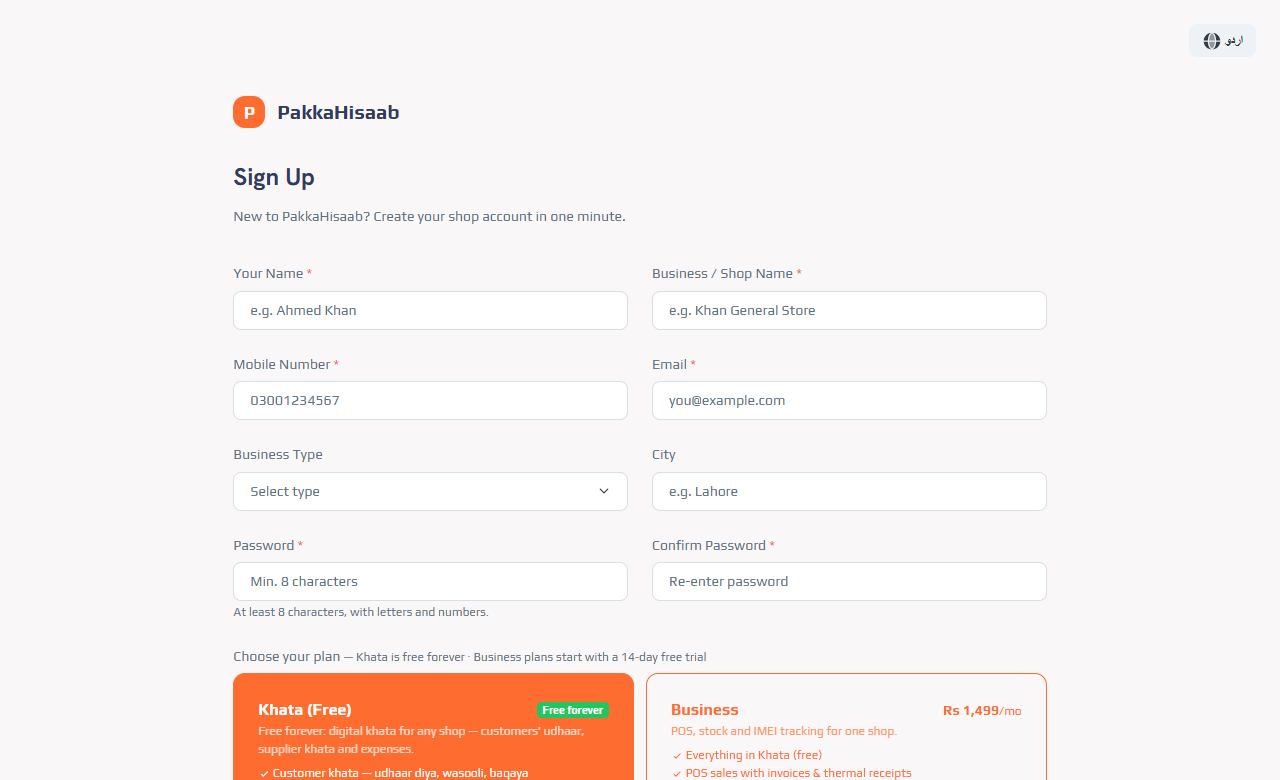
Forgot your password? On the login page click Forgot password? and we'll email you a link to set a new one. Staff can also ask the shop owner to reset it.پاس ورڈ بھول گئے؟ لاگ اِن صفحے پر پاس ورڈ بھول گئے؟ دبائیں، ہم ای میل پر نیا پاس ورڈ بنانے کا لنک بھیج دیں گے۔
3Dashboard — your shop at a glanceڈیش بورڈ — ایک نظر میں دکان
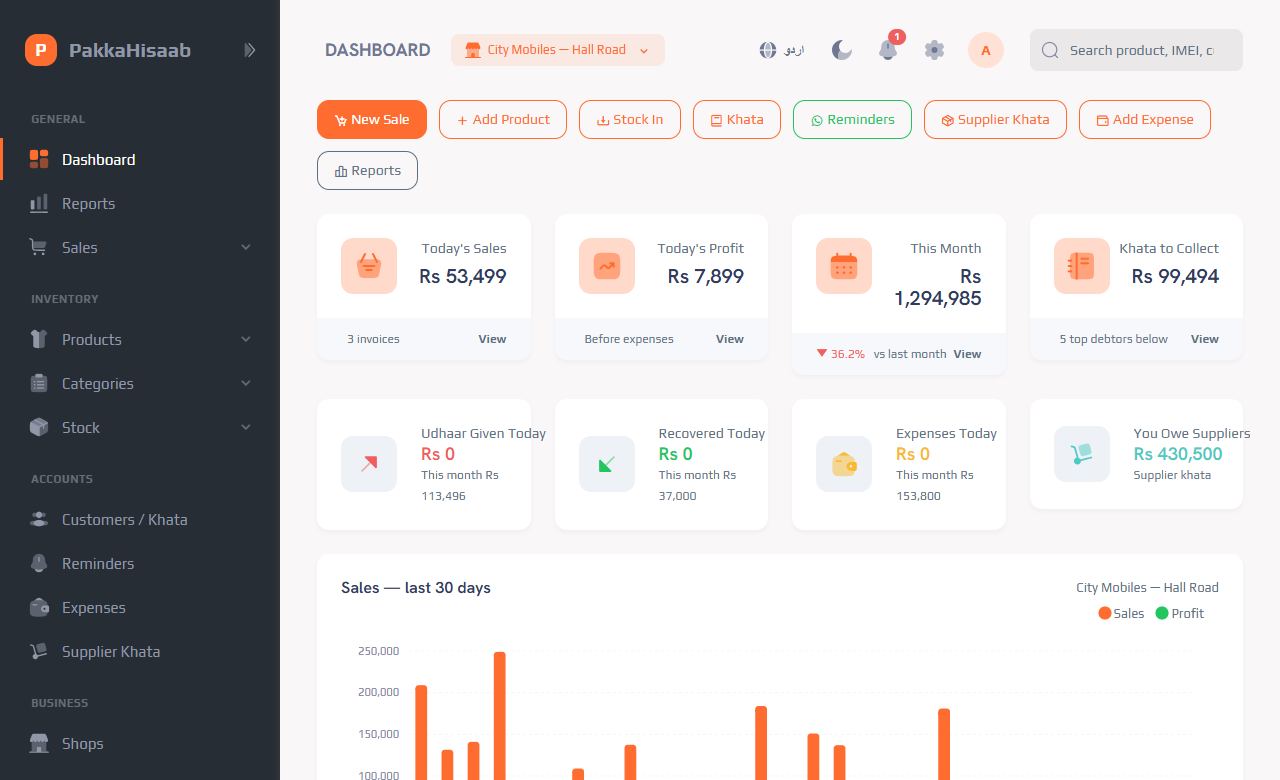
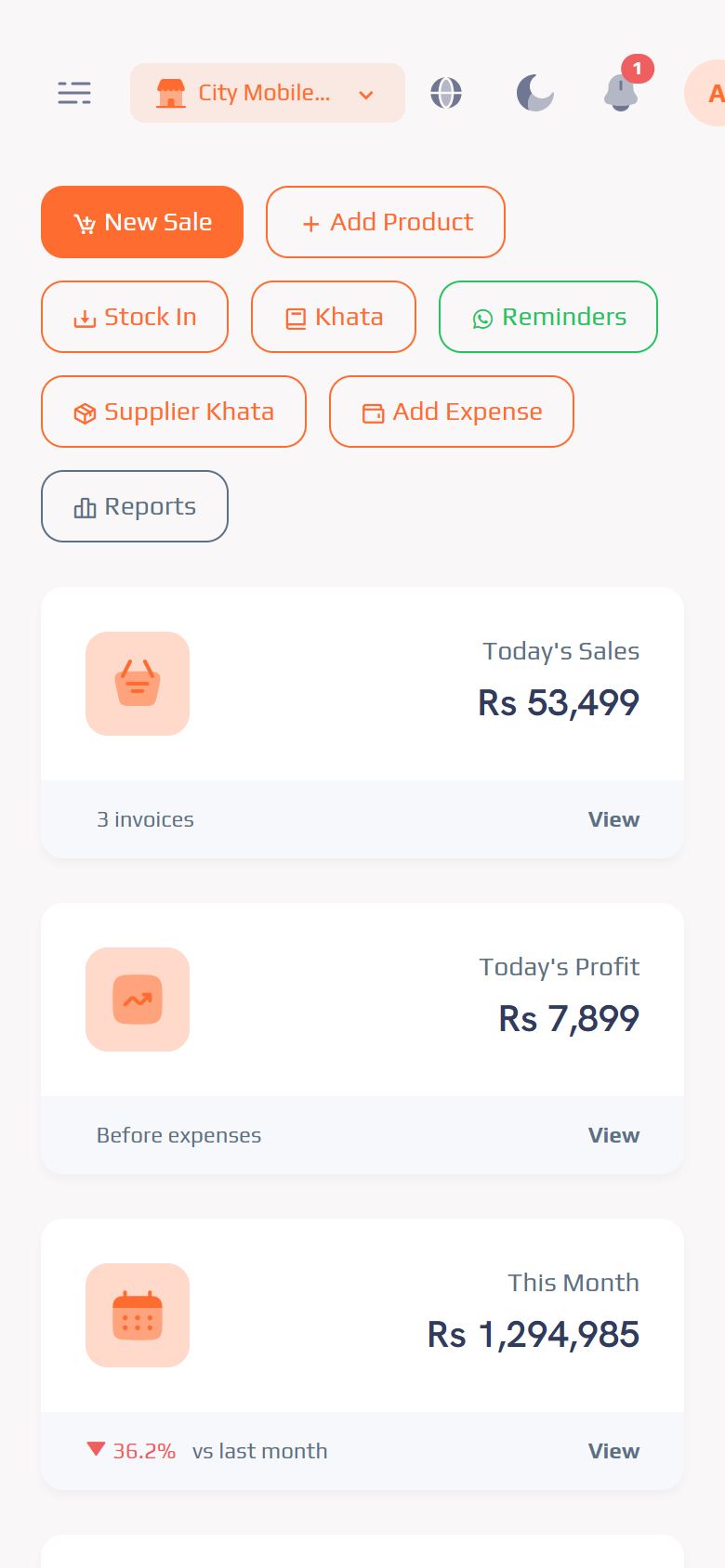
The first screen after login. It shows today's sale and profit, this month, how much udhaar you have to collect, today's udhaar given and recovered, expenses and what you owe suppliers. Below: a 30-day chart, top products, recent sales, low stock and who owes you.لاگ اِن کے بعد پہلی سکرین۔ اس میں آج کی سیل اور منافع، اس مہینے کی سیل، کتنا ادھار وصول کرنا ہے، آج کا دیا اور وصول ادھار، اخراجات اور سپلائرز کا باقی نظر آتا ہے۔ نیچے 30 دن کا چارٹ، زیادہ بکنے والی چیزیں، حالیہ سیل، کم سٹاک اور ادھار والے گاہک۔
4Customer khataگاہک کا کھاتہFreeمفت
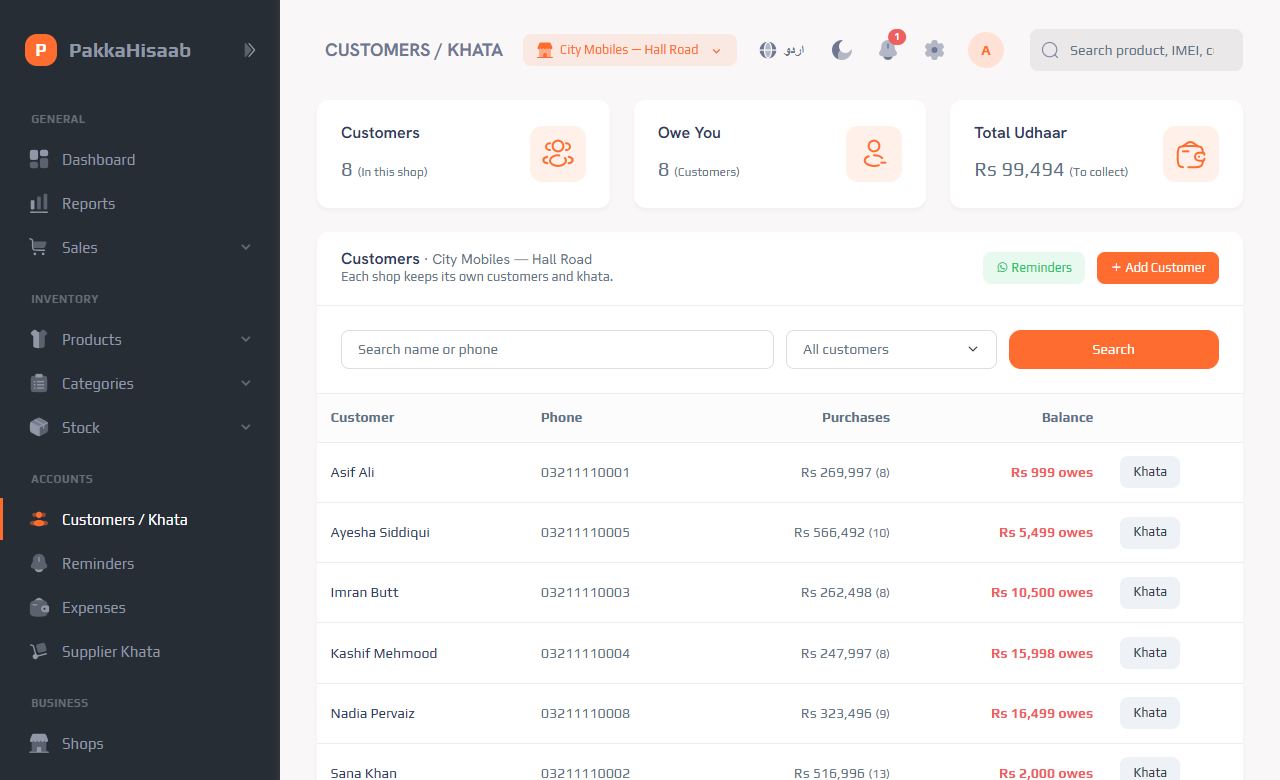
Your udhaar register, without the paper. Menu: Customers / Khata.کاغذ کے بغیر آپ کا ادھار رجسٹر۔ مینو: گاہک / کھاتہ۔
Add a customerگاہک شامل کریں
- Click Add Customer.گاہک شامل کریں دبائیں۔
- Write the name and mobile number.نام اور موبائل نمبر لکھیں۔
- Moving from a paper khata? Put their old udhaar in Already owes you.کاغذی کھاتے سے آ رہے ہیں؟ پرانا ادھار پہلے سے ادھار میں لکھ دیں۔
- Tick WhatsApp messages allowed if the customer agrees to get receipts and reminders on WhatsApp. Save.اگر گاہک واٹس ایپ پر رسید اور یاد دہانی لینے پر راضی ہے تو واٹس ایپ پیغامات کی اجازت پر نشان لگائیں۔ محفوظ کریں۔
Give udhaar or receive moneyادھار دیں یا رقم وصول کریں
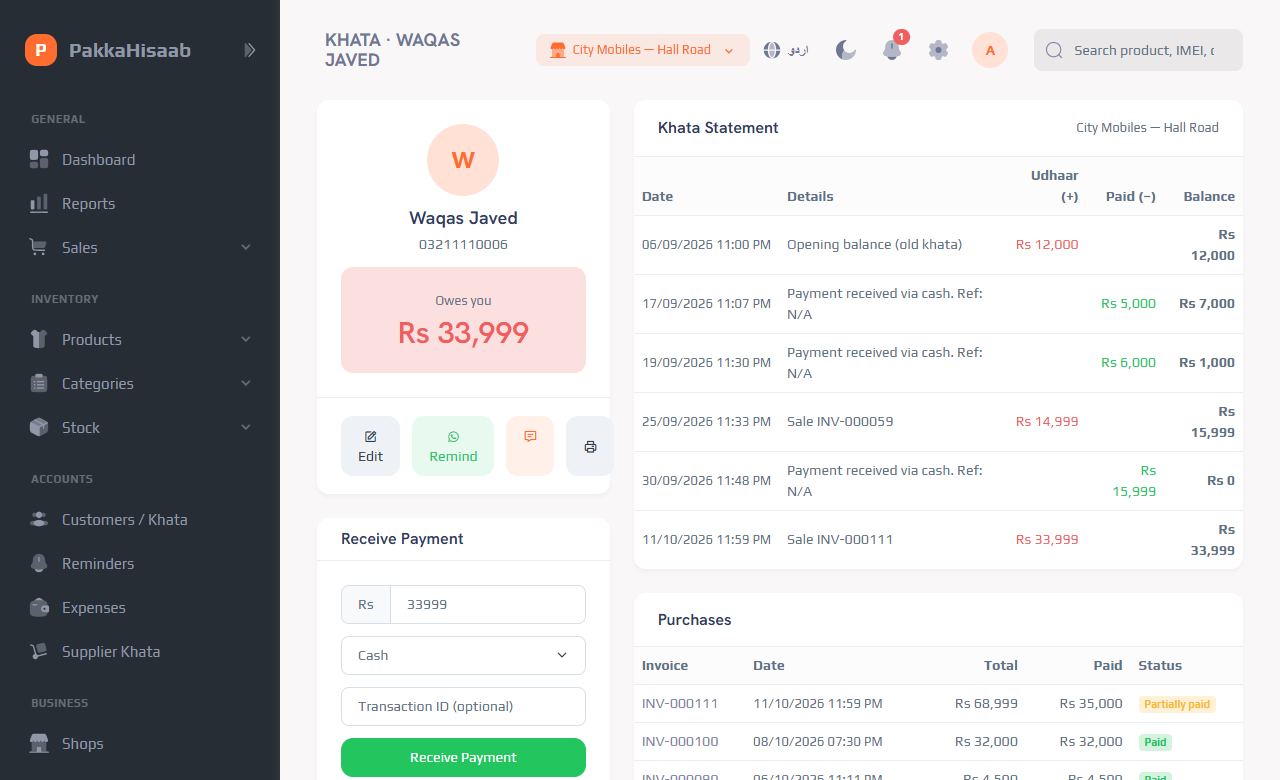
Click a customer's name to open their khata.گاہک کے نام پر کلک کر کے اس کا کھاتہ کھولیں۔
- Receive Payment — the customer paid you. Write the amount and method (cash, JazzCash…). The balance goes down.رقم وصول کریں — گاہک نے پیسے دیے۔ رقم اور طریقہ (نقد، جاز کیش…) لکھیں۔ باقی کم ہو جائے گا۔
- Manual Khata Entry → Udhaar given (+) — you gave goods or cash on udhaar without a POS bill.کھاتے میں دستی اندراج → ادھار دیا (+) — بغیر بل کے سامان یا نقد ادھار دیا۔
- Reduce (−) — a discount or correction that lowers the balance.کم کریں (−) — رعایت یا درستگی جس سے باقی کم ہو۔
- Sales on udhaar from the POS are added to the khata automatically.POS سے ادھار پر کی گئی سیل خود بخود کھاتے میں آ جاتی ہے۔
5Reminders — get your money backیاد دہانی — اپنا پیسہ واپس لیںFreeمفت
Menu: Reminders. Everyone who owes you is listed with a ready-made polite message.مینو: یاد دہانی۔ ہر ادھار والا گاہک ایک تیار، مہذب پیغام کے ساتھ موجود ہے۔
- Click WhatsApp (or SMS) next to a customer.گاہک کے سامنے واٹس ایپ (یا SMS) دبائیں۔
- WhatsApp opens with the message and their balance already written — just press send.واٹس ایپ پیغام اور باقی رقم لکھا ہوا کھلے گا — بس بھیج دیں۔
- The app remembers when you last reminded each customer.ایپ یاد رکھتی ہے کہ آپ نے ہر گاہک کو آخری بار کب یاد دلایا۔
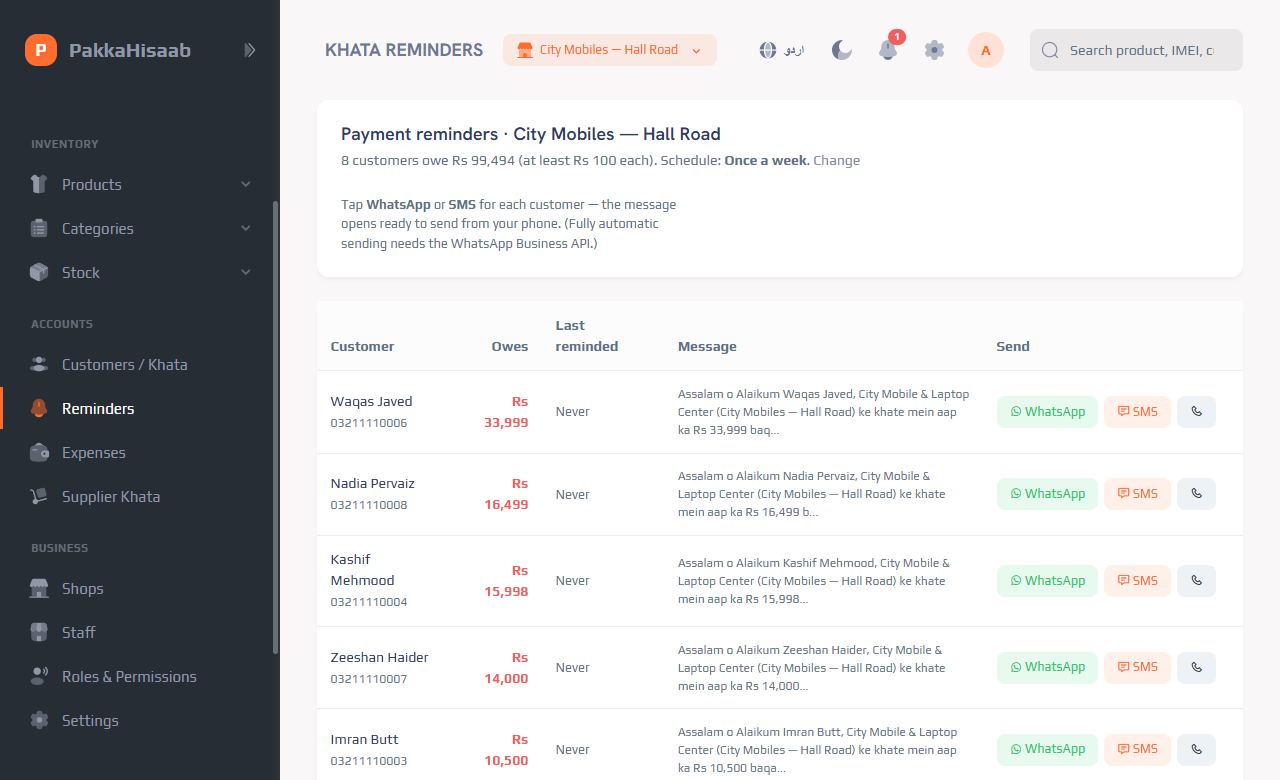
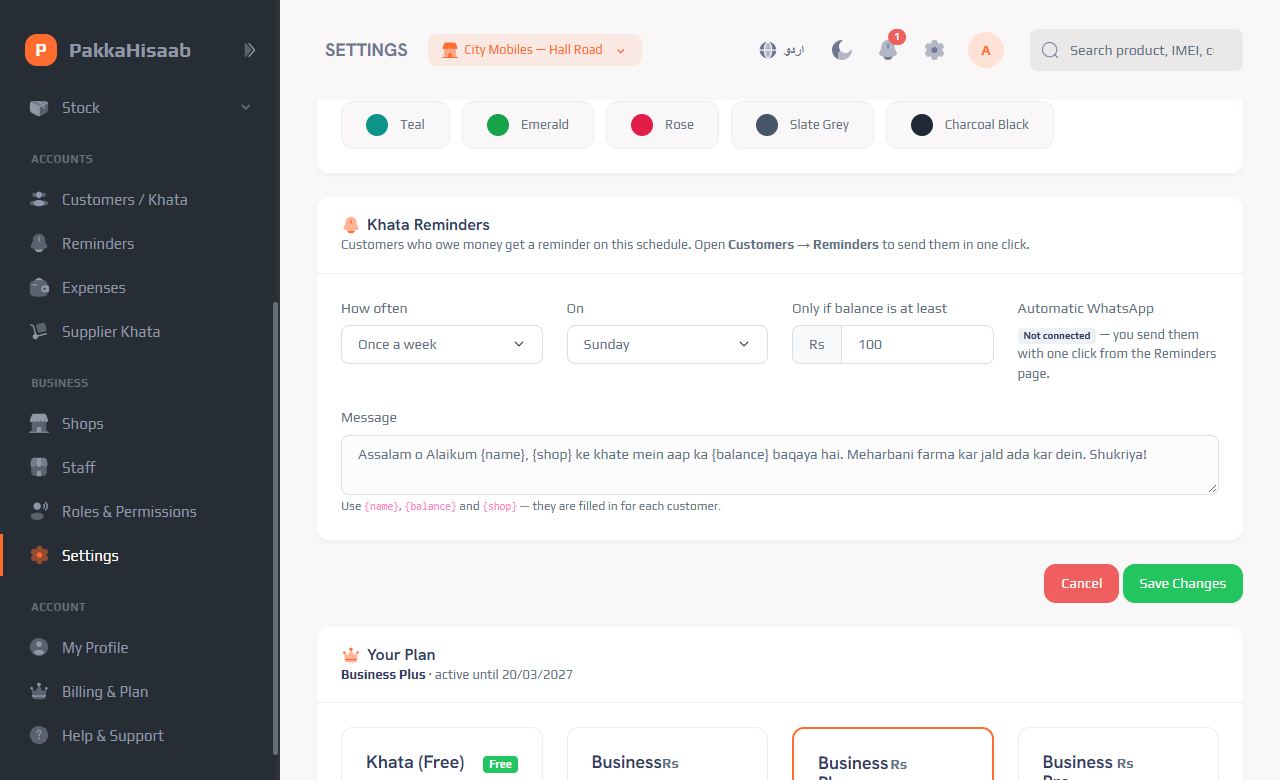
{name}, {balance} and {shop} in the message.پیغام، کتنی بار (روزانہ / ہفتہ وار / ماہانہ) اور کم از کم رقم سیٹنگز ← کھاتہ یاد دہانی میں بدلیں۔ پیغام میں {name}، {balance} اور {shop} لکھ سکتے ہیں۔6Supplier khata — what you oweسپلائر کھاتہ — آپ نے کتنا دینا ہےFreeمفت
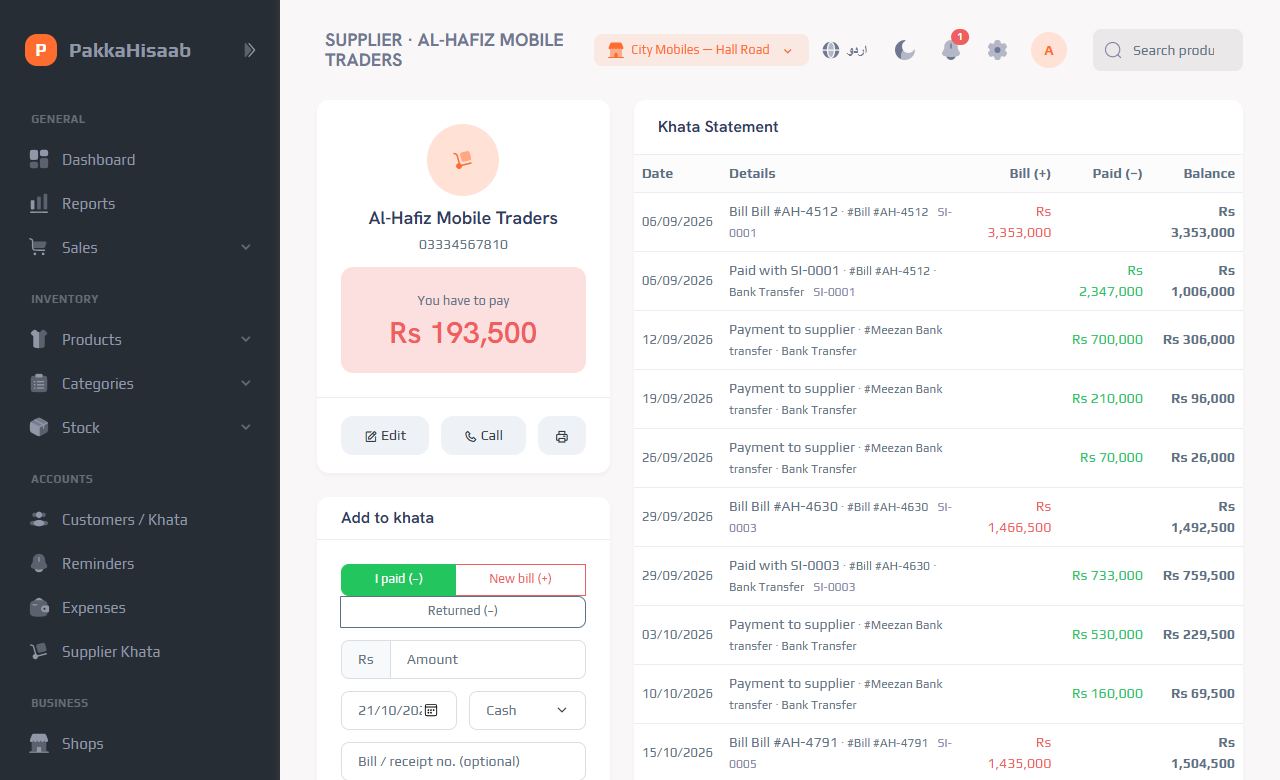
Menu: Supplier Khata. Keep track of bills from your wholesalers and what you have paid them.مینو: سپلائر کھاتہ۔ ہول سیلرز کے بل اور انہیں دی گئی رقم کا حساب رکھیں۔
- Add Supplier — name, phone and any old balance.سپلائر شامل کریں — نام، فون اور پرانا بقایا۔
- Open a supplier → New bill (+) when you buy, I paid (−) when you pay, Returned (−) for goods sent back.سپلائر کھولیں ← خریدنے پر نیا بل (+)، ادائیگی پر میں نے ادا کیا (−)، مال واپس کرنے پر واپس کیا (−)۔
- With a Business plan, Stock In bills go to the supplier khata by themselves.بزنس پلان میں سٹاک آمد کے بل خود بخود سپلائر کھاتے میں آ جاتے ہیں۔
7ExpensesاخراجاتFreeمفت
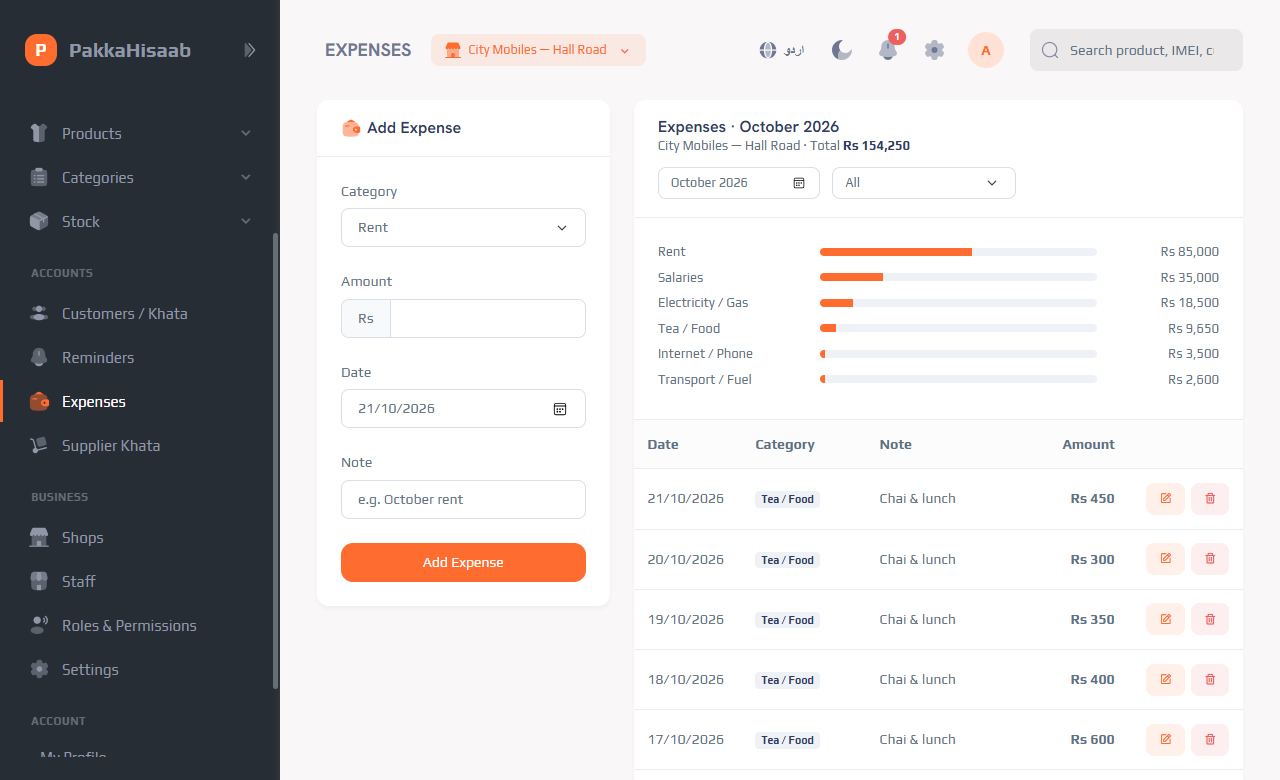
Menu: Expenses. Write down rent, salaries, electricity bill, chai, transport… so your profit is real profit.مینو: اخراجات۔ کرایہ، تنخواہیں، بجلی کا بل، چائے، کرایہ گاڑی… لکھیں تاکہ منافع اصل منافع ہو۔
- Click Add Expense, choose the category, amount and date. Save.خرچہ شامل کریں دبائیں، قسم، رقم اور تاریخ چنیں۔ محفوظ کریں۔
- See the month's total and totals by category on the same page.اسی صفحے پر مہینے کا کُل اور ہر قسم کا کُل دیکھیں۔
8Products, IMEI & photosپروڈکٹس، IMEI اور تصویریںBusinessبزنس
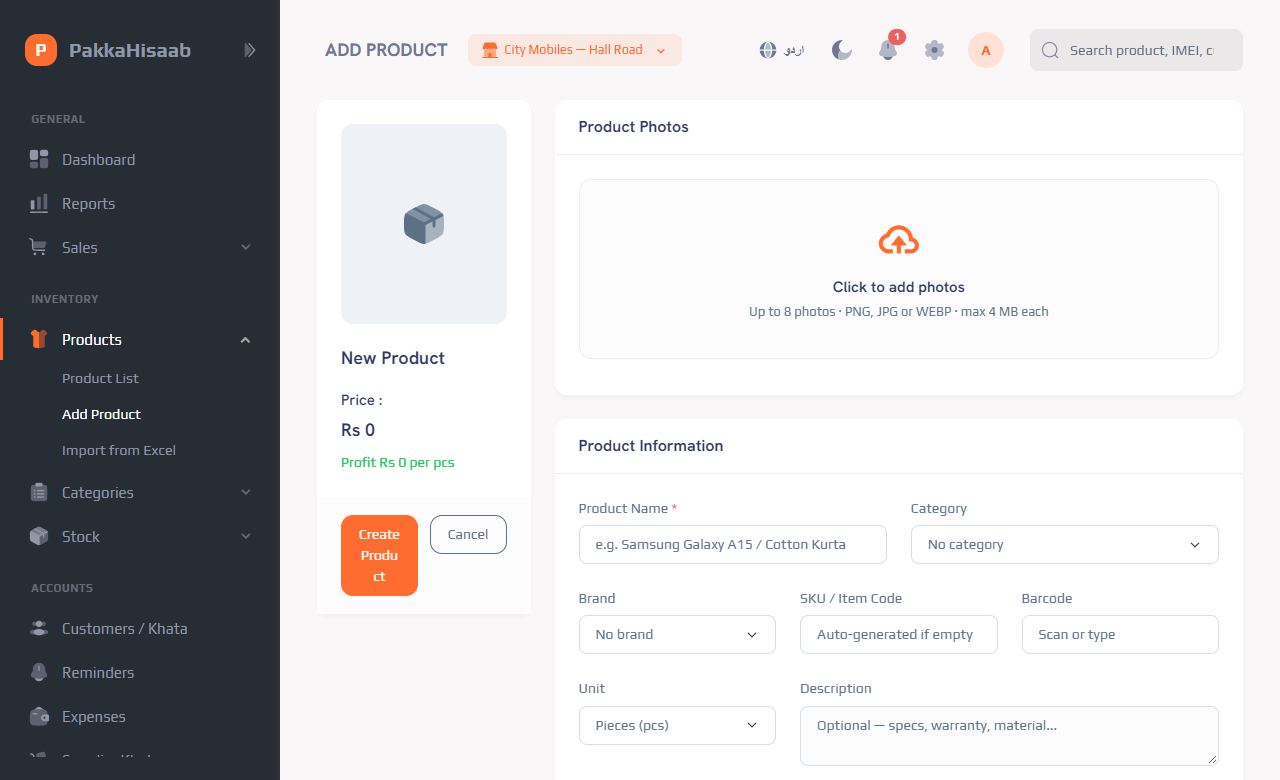
Menu: Products → Add Product.مینو: پروڈکٹس ← پروڈکٹ شامل کریں۔
- Write the name, category and brand, purchase price (cost) and selling price.نام، کیٹیگری اور برانڈ، خرید قیمت اور فروخت قیمت لکھیں۔
- Tracking: choose IMEI for phones, Serial number for laptops, or None for normal items like chargers.ٹریکنگ: فون کے لیے IMEI، لیپ ٹاپ کے لیے سیریل نمبر، چارجر جیسی عام چیزوں کے لیے کوئی نہیں۔
- Opening stock: for IMEI / serial items scan or type one number per line (a dual-SIM phone: IMEI1, IMEI2 on one line). For others just write the quantity.شروعاتی سٹاک: IMEI / سیریل والی چیزوں میں ہر لائن پر ایک نمبر سکین یا لکھیں (ڈوئل سم فون: ایک لائن پر IMEI1, IMEI2)۔ باقی چیزوں میں صرف تعداد۔
- Sizes or colours? Turn on Variants (e.g. Size: S, M, L) — each variant can have its own price and stock.سائز یا رنگ؟ ورائٹیز آن کریں (مثلاً سائز: S، M، L) — ہر ورائٹی کی اپنی قیمت اور سٹاک ہو سکتا ہے۔
- Add up to 8 photos and save.8 تک تصویریں لگائیں اور محفوظ کریں۔
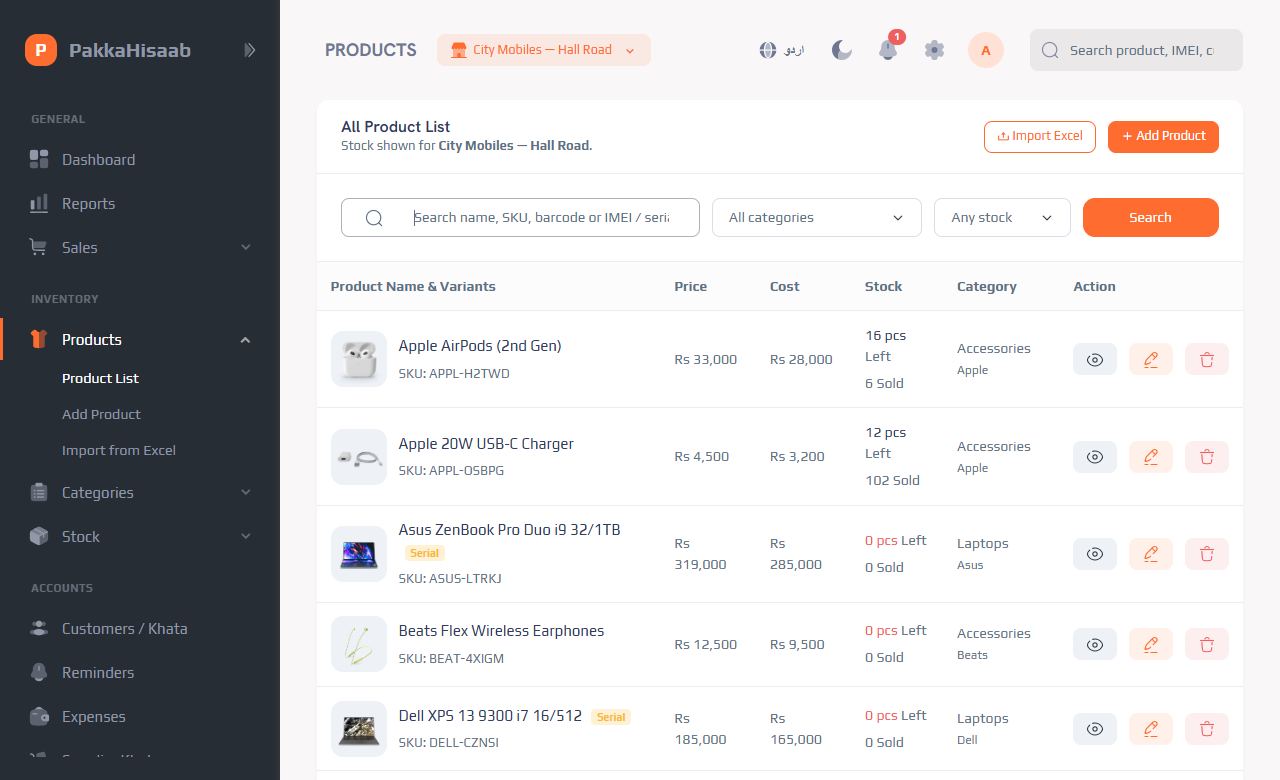
Search any product, customer, invoice or IMEI from the search box at the top of every page — for example to see when and to whom a phone was sold.ہر صفحے کے اوپر سرچ باکس سے کوئی بھی پروڈکٹ، گاہک، بل یا IMEI تلاش کریں — مثلاً یہ دیکھنے کے لیے کہ کوئی فون کب اور کس کو بیچا گیا۔
9Stock: buying, transfers, correctionsسٹاک: خریداری، ٹرانسفر، درستگیBusinessبزنس
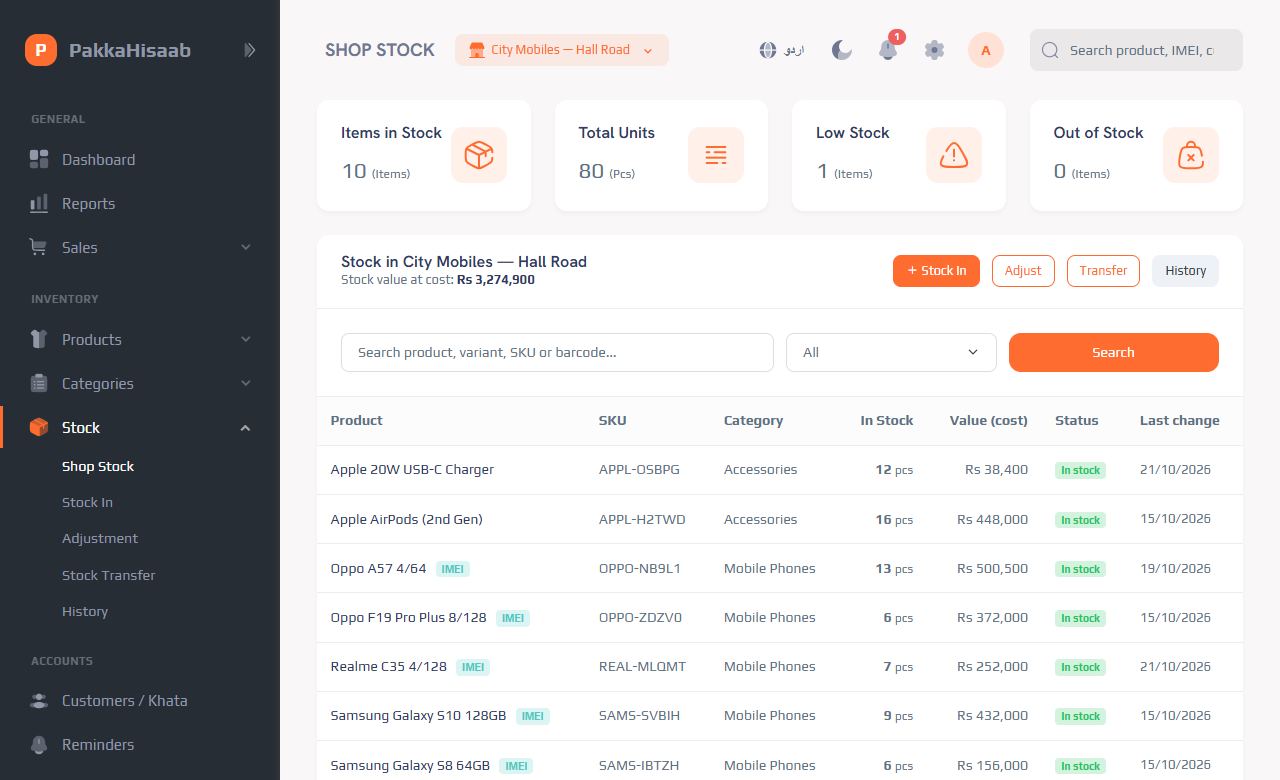
Stock In — goods from a supplierسٹاک آمد — سپلائر سے مال
- Stock → Stock In. Choose the supplier (or type a new name) and the bill number.سٹاک ← سٹاک آمد۔ سپلائر چنیں (یا نیا نام لکھیں) اور بل نمبر۔
- Add each product with quantity (or IMEIs) and purchase price.ہر پروڈکٹ تعداد (یا IMEI) اور خرید قیمت کے ساتھ شامل کریں۔
- Write how much you paid now — the rest goes on the supplier's khata. Save.لکھیں کہ ابھی کتنا ادا کیا — باقی سپلائر کے کھاتے میں چلا جائے گا۔ محفوظ کریں۔
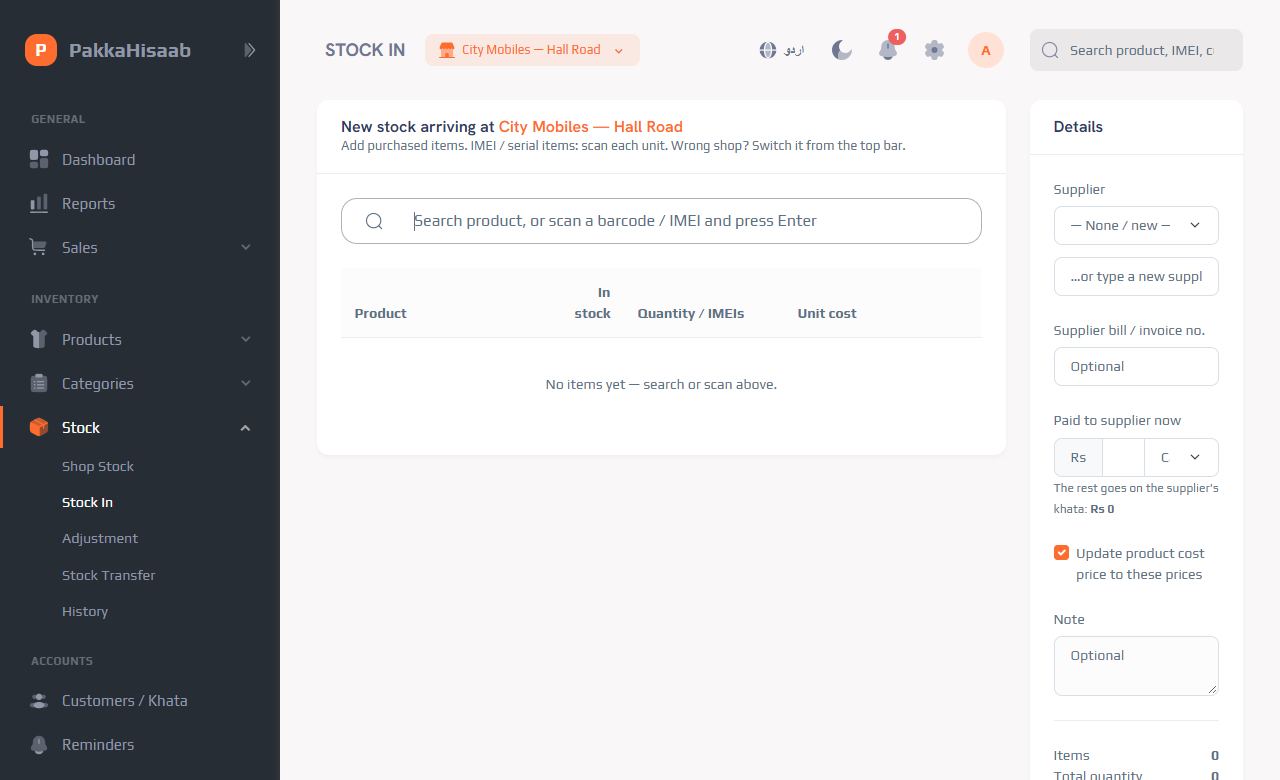
Transfer between shops & correctionsدکانوں کے درمیان ٹرانسفر اور درستگی
- Stock Transfer: send items (or particular IMEIs) from this shop to another of your shops.سٹاک ٹرانسفر: اس دکان سے اپنی دوسری دکان میں مال (یا خاص IMEI) بھیجیں۔
- Adjustment: fix the count for damaged, lost, own use or found items — with a reason, so nothing disappears silently.سٹاک درستگی: خراب، گم، ذاتی استعمال یا ملنے والے مال کی گنتی وجہ کے ساتھ درست کریں — کچھ بھی چپکے سے غائب نہیں ہوتا۔
- History: every stock in, transfer and adjustment with who did it.ریکارڈ: ہر سٹاک آمد، ٹرانسفر اور درستگی — کس نے کی۔
10Making a sale (POS)سیل کرنا (POS)Businessبزنس
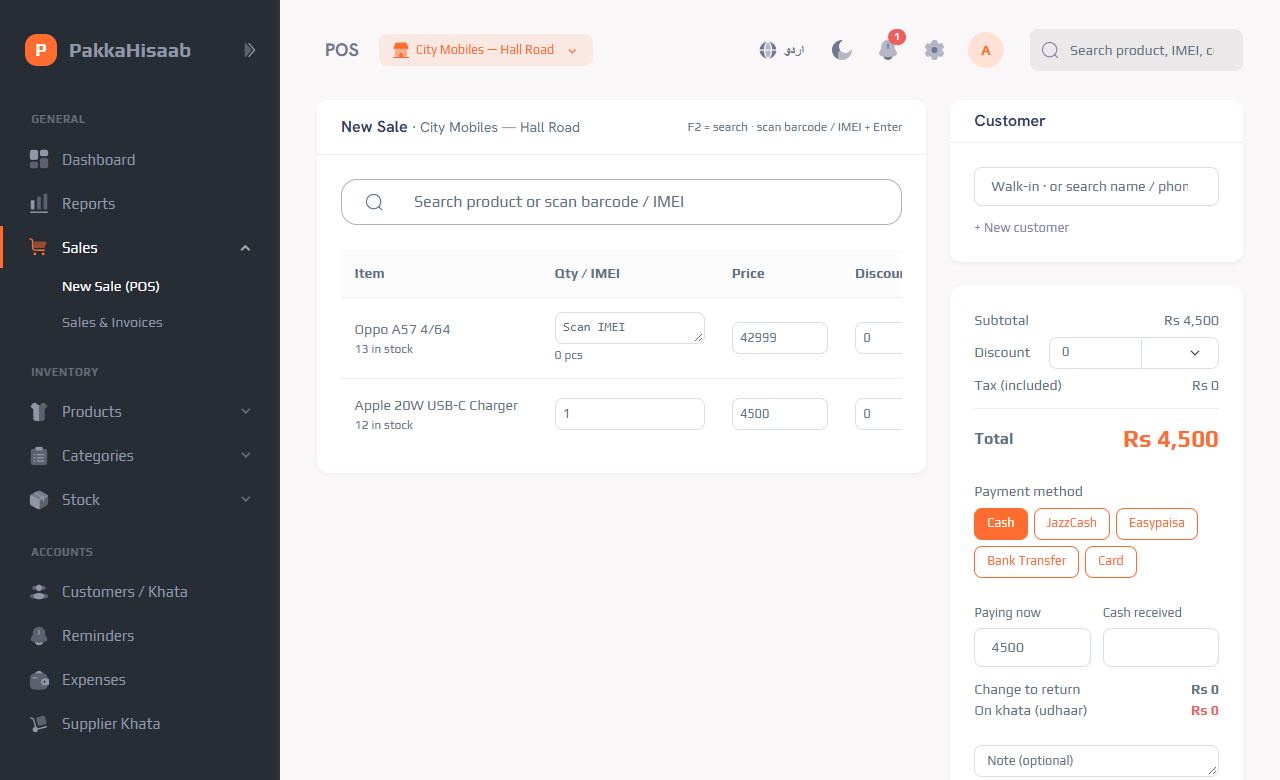
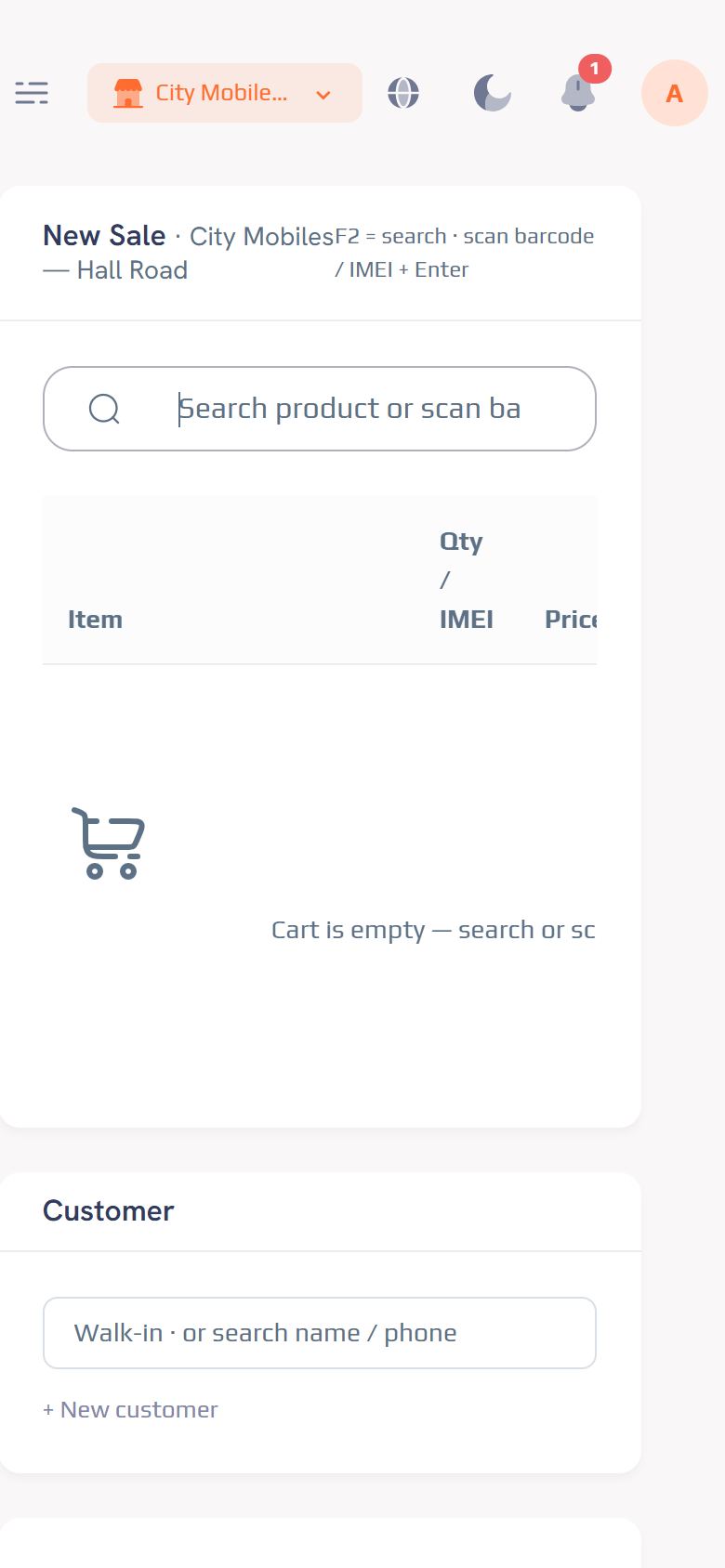
Menu: Sales → New Sale (POS).مینو: سیلز ← نئی سیل (POS)۔
- Type a product name, or scan the barcode / IMEI with a scanner and press Enter. Press F2 to jump to the search box.پروڈکٹ کا نام لکھیں، یا سکینر سے بارکوڈ / IMEI سکین کر کے Enter دبائیں۔ سرچ باکس پر جانے کے لیے F2 دبائیں۔
- For phones, scan each phone's IMEI — the app sells exactly that phone and won't let a phone from another shop be sold.فون کے لیے ہر فون کا IMEI سکین کریں — ایپ بالکل وہی فون بیچتی ہے اور دوسری دکان کا فون بیچنے نہیں دیتی۔
- Walk-in customer, or search / add a customer on the right.عام گاہک، یا دائیں طرف گاہک تلاش / شامل کریں۔
- Choose the payment method: Cash, JazzCash, Easypaisa, Bank Transfer or Card.ادائیگی کا طریقہ چنیں: نقد، جاز کیش، ایزی پیسہ، بینک ٹرانسفر یا کارڈ۔
- Paying now — if the customer pays less, the rest goes on their khata as udhaar. Cash received shows the change to give back.ابھی ادائیگی — اگر گاہک کم دے تو باقی رقم اس کے کھاتے میں ادھار چلی جاتی ہے۔ وصول شدہ نقد سے واپس دینے والی رقم نظر آتی ہے۔
- Click Complete, then print the receipt.مکمل کریں دبائیں، پھر رسید پرنٹ کریں۔
Receipts & invoicesرسید اور بل
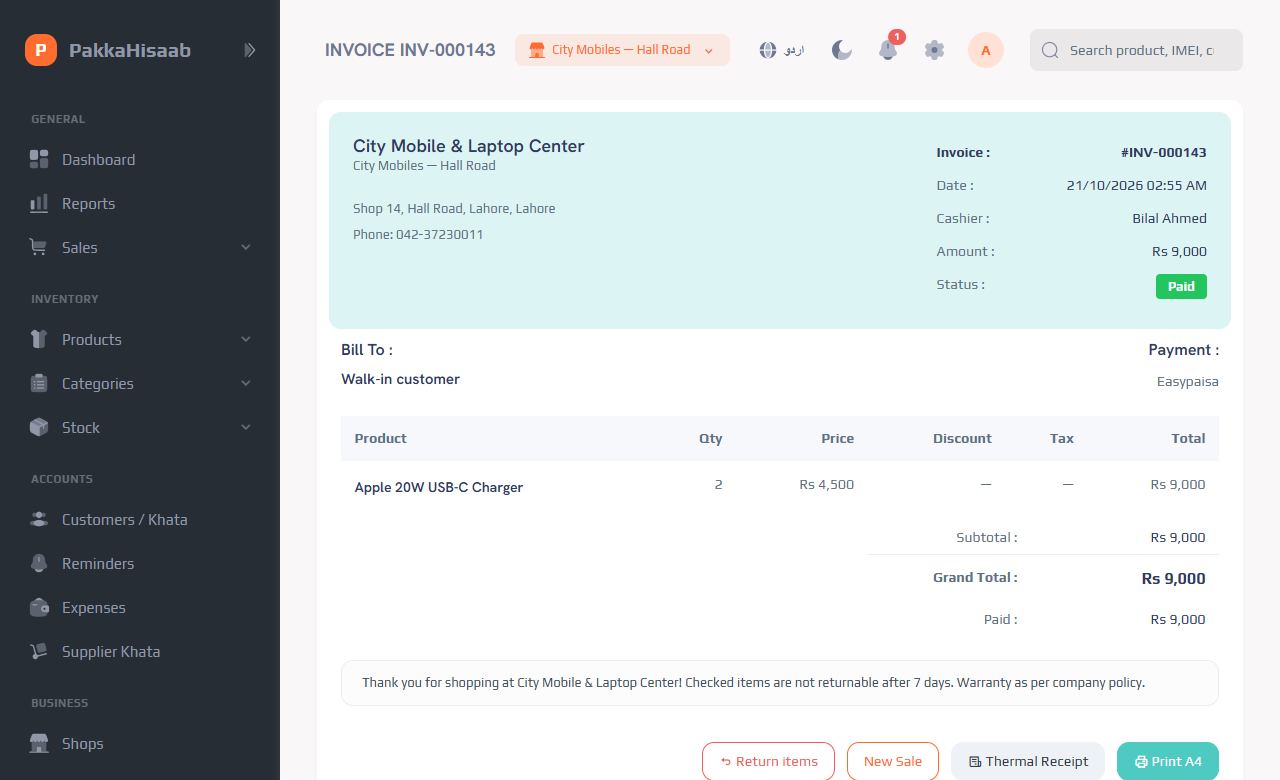
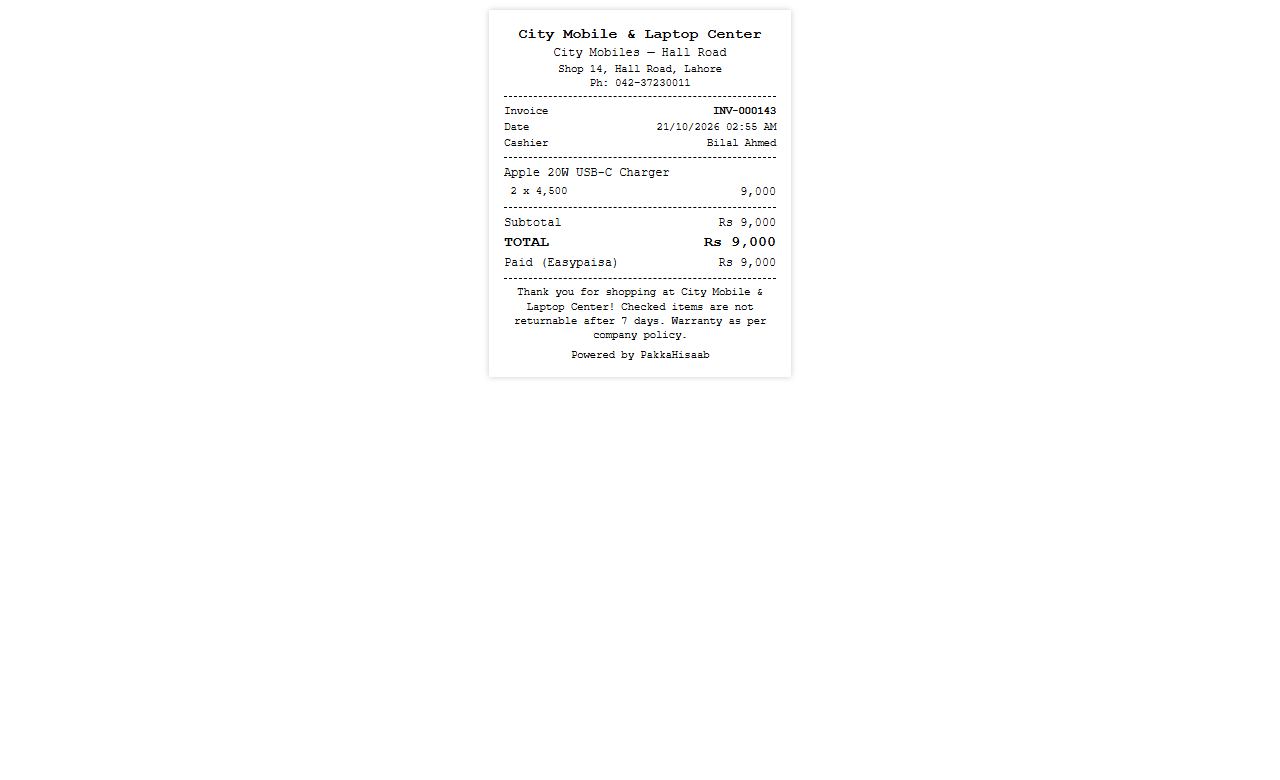
Every sale has an invoice (Sales → Sales & Invoices). Print a small thermal receipt (58 / 80 mm printers) or an A4 invoice with your logo and footer. Search sales by invoice number, customer phone or IMEI.ہر سیل کا بل ہوتا ہے (سیلز ← سیلز اور بل)۔ چھوٹی تھرمل رسید (58 / 80 ملی میٹر پرنٹر) یا آپ کے لوگو کے ساتھ A4 بل پرنٹ کریں۔ بل نمبر، گاہک کے فون یا IMEI سے سیل تلاش کریں۔
11Returns & exchangesواپسی اور تبدیلیBusinessبزنس
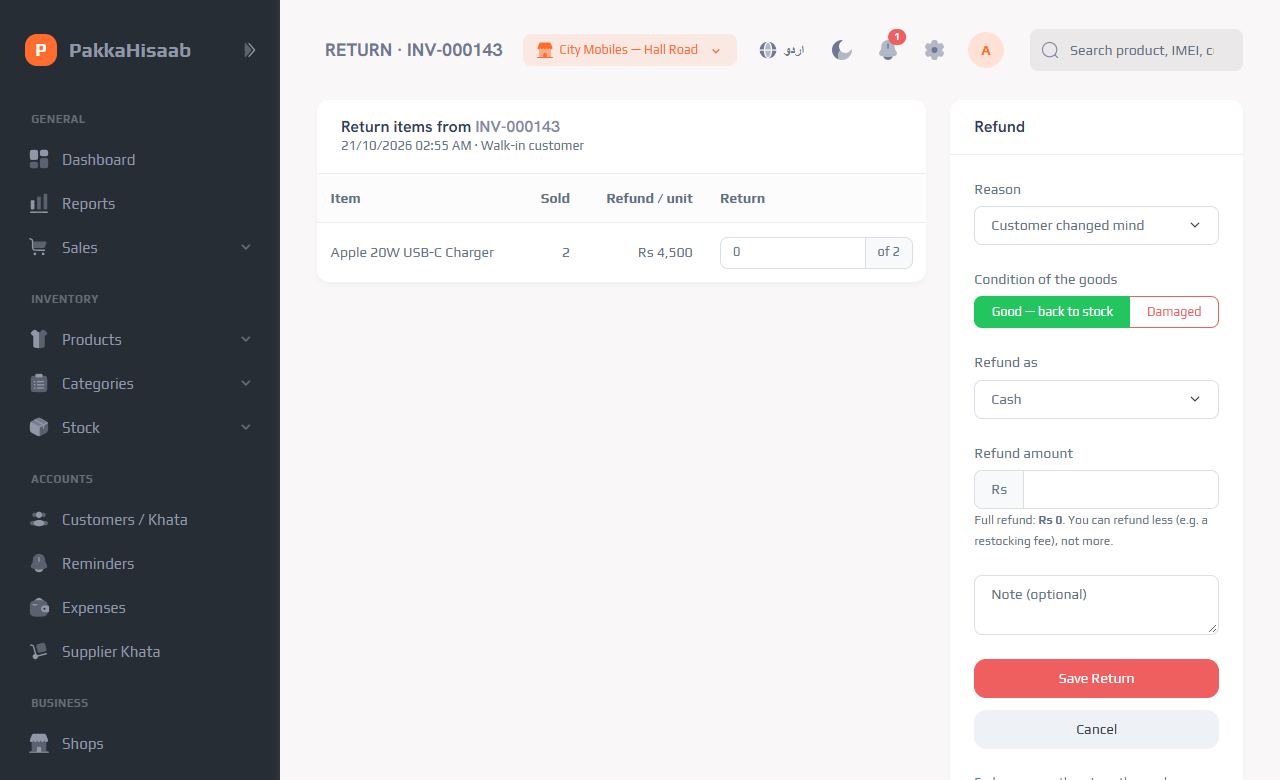
- Open the sale (search the invoice number, phone or IMEI) and click Return items.سیل کھولیں (بل نمبر، فون یا IMEI سے تلاش کریں) اور مال واپسی دبائیں۔
- Choose what comes back and how much. For phones, pick the IMEI.چنیں کیا اور کتنا واپس آیا۔ فون کے لیے IMEI چنیں۔
- Refund in cash (or JazzCash…) or to the khata (it reduces what the customer owes).نقد (یا جاز کیش…) واپس کریں یا کھاتے میں (گاہک کا ادھار کم ہو جاتا ہے)۔
- Untick Put back in stock if the item is damaged.اگر مال خراب ہے تو سٹاک میں واپس سے نشان ہٹا دیں۔
12Reports — your real profitرپورٹس — اصل منافع
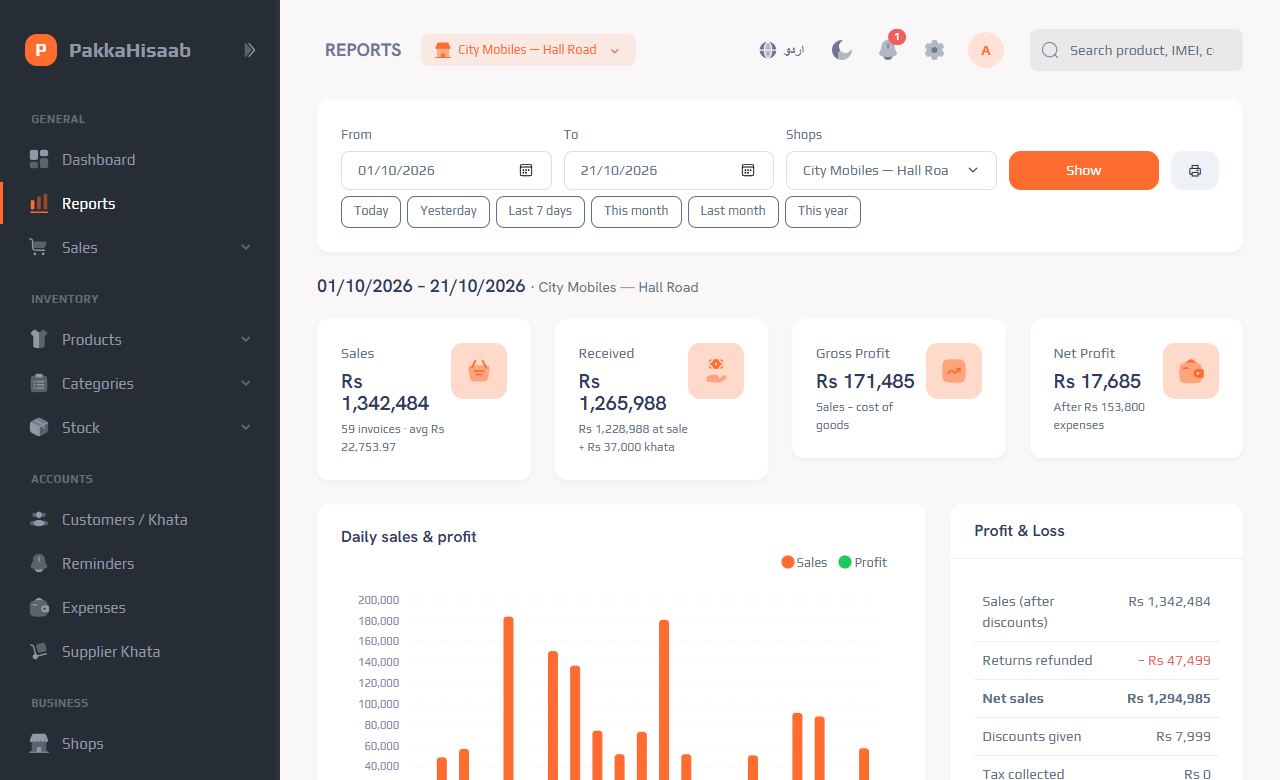
Menu: Reports. Pick Today, Yesterday, Last 7 days, This month… or any dates, for one shop or all shops.مینو: رپورٹس۔ آج، کل، پچھلے 7 دن، یہ مہینہ… یا کوئی بھی تاریخیں چنیں، ایک دکان یا تمام دکانوں کے لیے۔
- Profit & Loss: sales − returns − cost of goods = gross profit; − expenses = net profit.نفع و نقصان: سیل − واپسی − مال کی لاگت = مجموعی منافع؛ − اخراجات = خالص منافع۔
- Daily sales & profit chart, top products, sales by category, payment methods, sales by staff, expenses by category.روزانہ سیل اور منافع کا چارٹ، زیادہ بکنے والی چیزیں، کیٹیگری وار سیل، ادائیگی کے طریقے، عملے کے حساب سے سیل، اخراجات قسم وار۔
- Udhaar given vs recovered, supplier bills vs payments, and a month-by-month table for the last 12 months. Click 🖨 to print.دیا اور وصول ادھار، سپلائر بل اور ادائیگیاں، اور پچھلے 12 مہینوں کا مہینہ وار جدول۔ پرنٹ کے لیے 🖨 دبائیں۔
13Shops, staff & rolesدکانیں، عملہ اور اختیارات
More than one shopایک سے زیادہ دکانیں
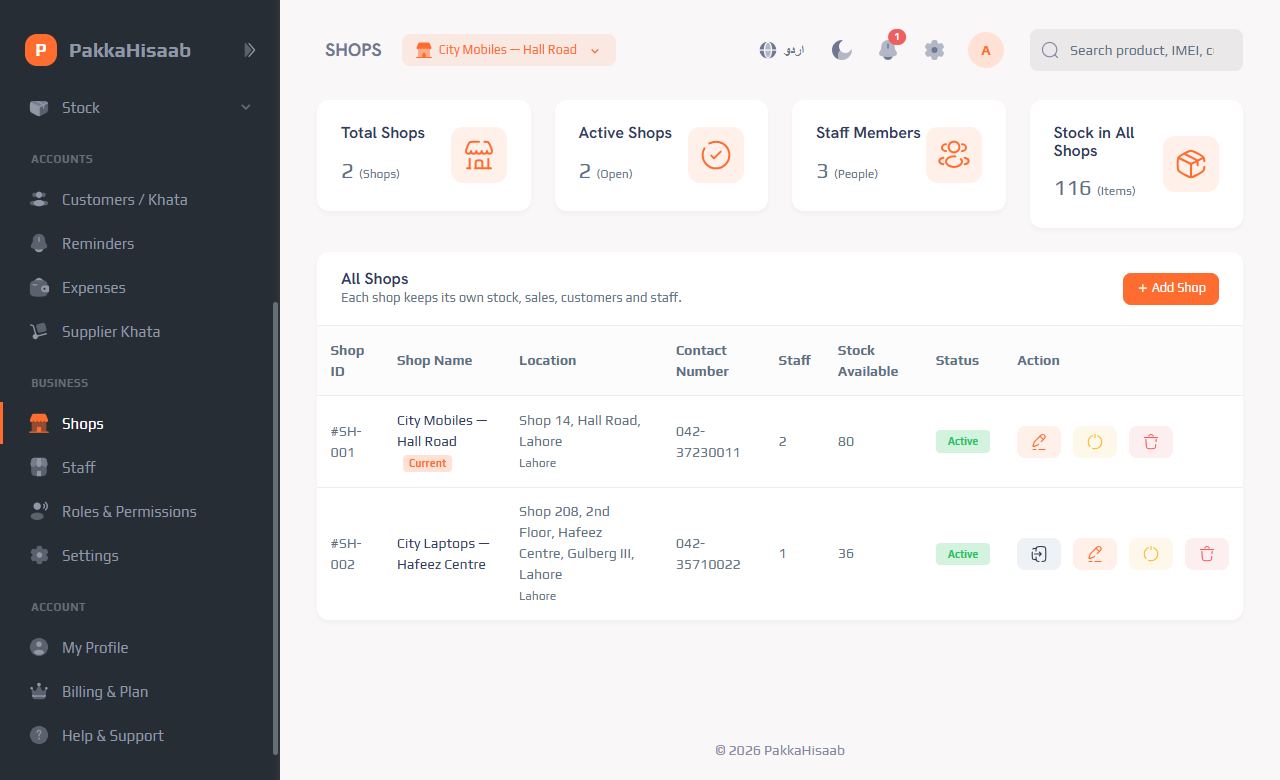
Shops → Add shop. Each shop has its own stock, customers and sales; you see all of them and can move stock between them. (How many shops you can add depends on your plan.)دکانیں ← دکان شامل کریں۔ ہر دکان کا اپنا سٹاک، گاہک اور سیل ہوتی ہے؛ آپ سب دیکھ سکتے ہیں اور ان کے درمیان سٹاک بھیج سکتے ہیں۔ (کتنی دکانیں شامل ہو سکتی ہیں یہ آپ کے پلان پر منحصر ہے۔)
Give your salesman a loginسیلز مین کو لاگ اِن دیں
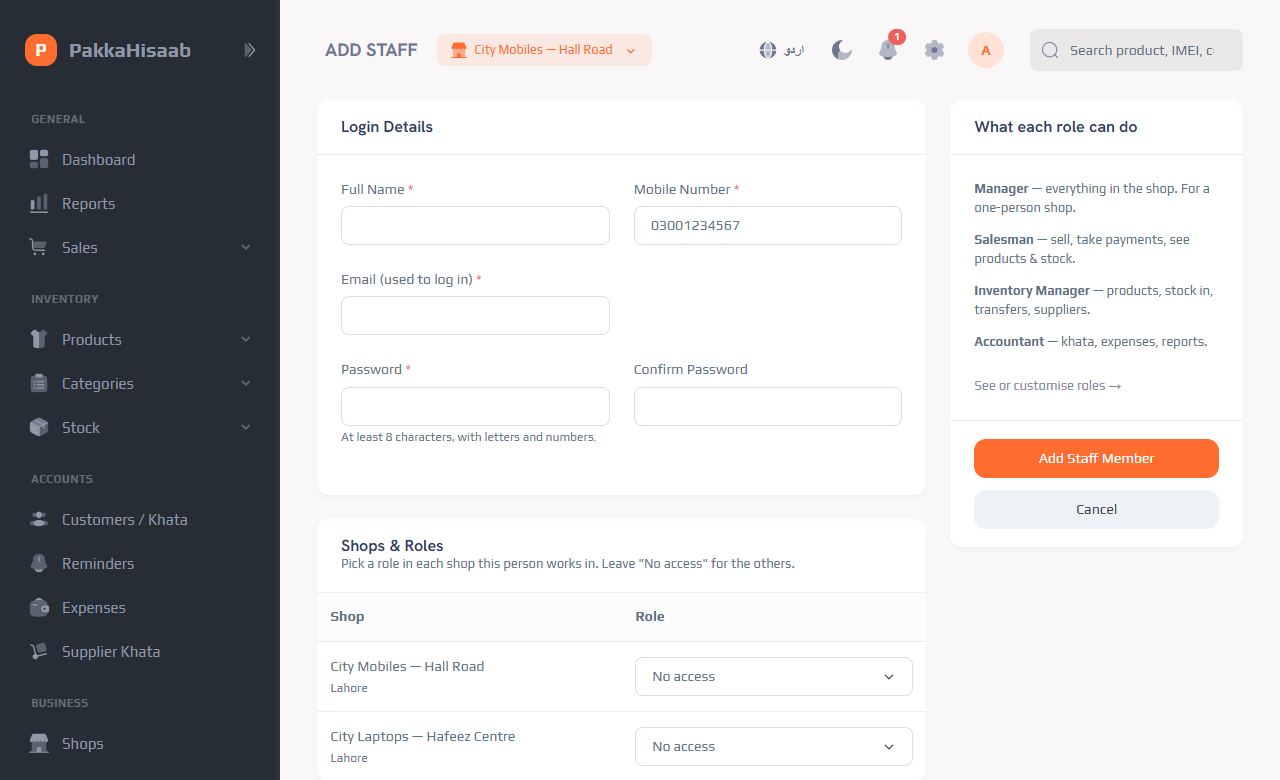
- Staff → Add staff: name, mobile, email and a password.عملہ ← عملہ شامل کریں: نام، موبائل، ای میل اور پاس ورڈ۔
- Choose the shop(s) and the role, e.g. Salesman in "Hall Road". Save and give them the login.دکان(یں) اور عہدہ چنیں، مثلاً "ہال روڈ" میں سیلز مین۔ محفوظ کریں اور انہیں لاگ اِن دے دیں۔
| Roleعہدہ | Canکیا کر سکتا ہے |
|---|---|
| Ownerمالک | Everything, in every shop.ہر دکان میں سب کچھ۔ |
| Managerمینیجر | Runs the shop: sales, discounts, stock, khata, expenses, reports.دکان چلاتا ہے: سیل، رعایت، سٹاک، کھاتہ، اخراجات، رپورٹس۔ |
| Salesmanسیلز مین | Sells, adds customers and takes khata payments. Can't see cost prices or profit, give discounts, or open reports and expenses.سیل کرتا ہے، گاہک شامل کرتا ہے اور کھاتے کی رقم وصول کرتا ہے۔ قیمت خرید یا منافع نہیں دیکھ سکتا، رعایت نہیں دے سکتا، رپورٹس اور اخراجات نہیں کھول سکتا۔ |
| Inventory Manager / Accountantانوینٹری مینیجر / اکاؤنٹنٹ | Stock work / khata, expenses and reports.سٹاک کا کام / کھاتہ، اخراجات اور رپورٹس۔ |
Need something different? Roles & Permissions → New role and tick exactly what that person may do. Disable a staff member any time — they're logged out at once and their sales history stays.کچھ مختلف چاہیے؟ عہدے اور اختیارات ← نیا عہدہ اور بالکل وہی چنیں جو وہ شخص کر سکے۔ کسی بھی وقت عملے کا اکاؤنٹ بند کریں — وہ فوراً لاگ آؤٹ ہو جائے گا اور اس کی سیل کا ریکارڈ رہے گا۔
14Settings & app colourسیٹنگز اور ایپ کا رنگ
Menu: Settings (owner and managers).مینو: سیٹنگز (مالک اور مینیجر)۔
- Business Profile: shop name, phone, address, NTN and your logo — shown on every receipt.کاروبار کی تفصیل: دکان کا نام، فون، پتہ، NTN اور آپ کا لوگو — ہر رسید پر نظر آتا ہے۔
- Localization: currency, language, time zone and date format.علاقائی سیٹنگز: کرنسی، زبان، ٹائم زون اور تاریخ کا انداز۔
- Invoice & Tax: invoice number prefix, the thank-you / warranty line at the bottom of receipts, sales tax.بل اور ٹیکس: بل نمبر کا آغاز، رسید کے نیچے شکریہ / وارنٹی کی لائن، سیلز ٹیکس۔
- App Colour (owner): pick a colour for your app — every shop and staff member sees it.ایپ کا رنگ (مالک): اپنی ایپ کا رنگ چنیں — ہر دکان اور عملہ یہی رنگ دیکھے گا۔
15Plans & paymentپلان اور ادائیگی
| Planپلان | What you getکیا ملتا ہے |
|---|---|
| Khataکھاتہ Free foreverہمیشہ مفت | Customer khata, reminders, supplier khata, expenses, reports, staff logins.گاہک کا کھاتہ، یاد دہانی، سپلائر کھاتہ، اخراجات، رپورٹس، عملے کے لاگ اِن۔ |
| Businessبزنس | Everything in Khata + POS, products, stock, IMEI / serial tracking, sales & profit reports. Sizes for 1, 2 or 5 shops.کھاتے کی ہر چیز + POS، پروڈکٹس، سٹاک، IMEI / سیریل ٹریکنگ، سیل اور منافع کی رپورٹس۔ 1، 2 یا 5 دکانوں کے لیے۔ |
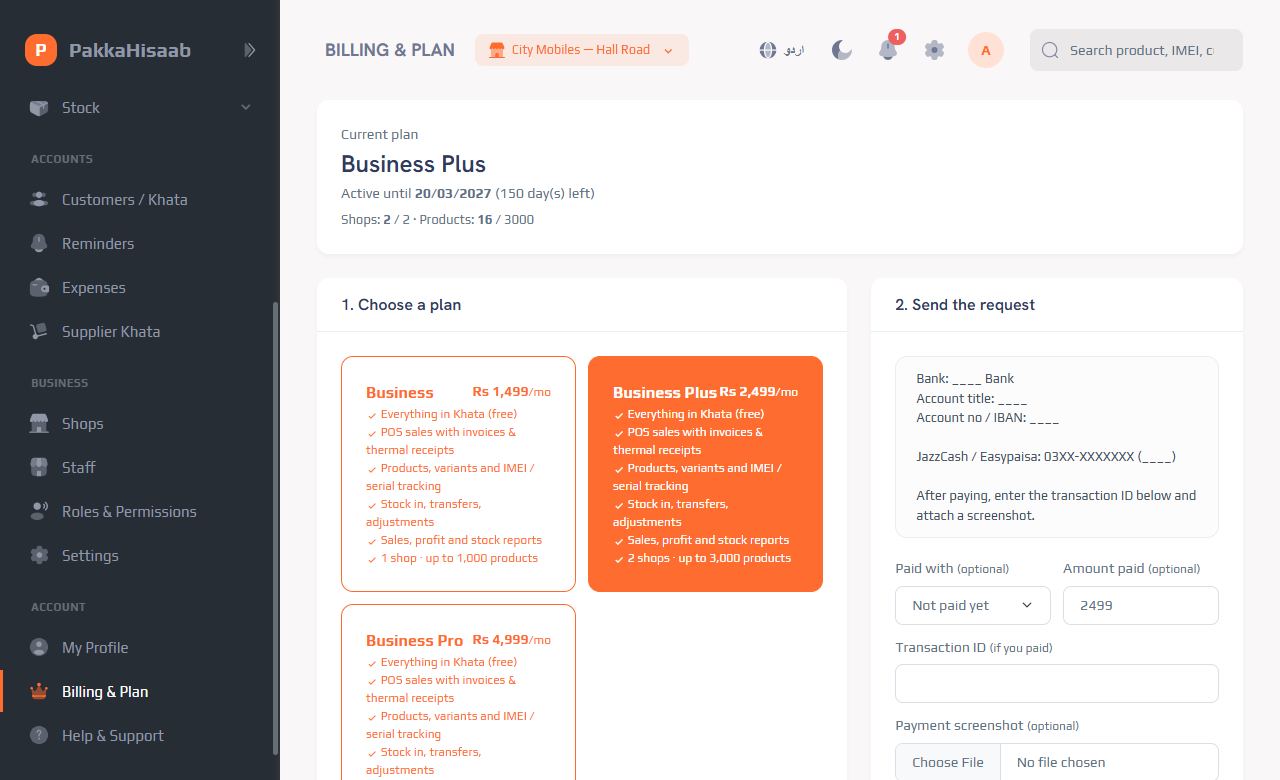
See the current prices on the Billing & Plan page in the app.موجودہ قیمتیں ایپ کے بلنگ اور پلان صفحے پر دیکھیں۔
How to buy or renew a Business planبزنس پلان کیسے لیں یا تجدید کریں
- Open Billing & Plan, choose the plan and for how long (1, 3, 6 or 12 months). Have a coupon? Enter it.بلنگ اور پلان کھولیں، پلان اور مدت (1، 3، 6 یا 12 مہینے) چنیں۔ کوپن ہے تو لکھیں۔
- Pay to the account shown on the page (bank, JazzCash or Easypaisa).صفحے پر دیے گئے اکاؤنٹ میں ادائیگی کریں (بینک، جاز کیش یا ایزی پیسہ)۔
- Write the transaction ID (and attach a screenshot) and click Request this plan.ٹرانزیکشن آئی ڈی لکھیں (اور سکرین شاٹ لگائیں) اور یہ پلان لیں دبائیں۔
- We check the payment and your plan starts — you get an email.ہم ادائیگی چیک کرتے ہیں اور آپ کا پلان شروع ہو جاتا ہے — آپ کو ای میل آ جاتی ہے۔
16Using it on your phoneموبائل پر استعمال
PakkaHisaab already works in your phone's browser (Chrome / Safari) — open the app's address and log in. Tip: in Chrome tap ⋮ → Add to Home screen to open it like an app.پکا حساب ابھی سے آپ کے فون کے براؤزر (کروم / سفاری) میں چلتا ہے — ایپ کا ایڈریس کھولیں اور لاگ اِن کریں۔ مشورہ: کروم میں ⋮ ← Add to Home screen دبائیں تاکہ ایپ کی طرح کھلے۔
17Questions & helpسوالات اور مدد
Is the Khata really free?کیا کھاتہ واقعی مفت ہے؟
Yes — forever, with no time limit. You pay only if you want POS and stock (Business plans).جی ہاں — ہمیشہ کے لیے، کوئی وقت کی حد نہیں۔ پیسے صرف تب جب آپ کو سیل اور سٹاک (بزنس پلان) چاہیے۔
Is my data safe? Can others see it?کیا میرا ڈیٹا محفوظ ہے؟ کیا دوسرے دیکھ سکتے ہیں؟
Each business's data is completely separate and only your own logins can open it. It's saved online with a backup every night.ہر کاروبار کا ڈیٹا بالکل الگ ہے اور صرف آپ کے اپنے لاگ اِن اسے کھول سکتے ہیں۔ یہ آن لائن محفوظ ہوتا ہے اور ہر رات بیک اپ بنتا ہے۔
Do I need internet?کیا انٹرنیٹ ضروری ہے؟
Yes, the web app works online (mobile data is enough). That's what keeps your shops, phone and computer in sync.جی ہاں، ویب ایپ آن لائن چلتی ہے (موبائل ڈیٹا کافی ہے)۔ اسی سے آپ کی دکانیں، فون اور کمپیوٹر ایک ساتھ اپ ڈیٹ رہتے ہیں۔
Which printer do I need?کون سا پرنٹر چاہیے؟
Any 58 mm or 80 mm thermal receipt printer installed on your computer, or a normal printer for A4 invoices. Click Print on the receipt.کمپیوٹر پر لگا کوئی بھی 58 یا 80 ملی میٹر تھرمل رسید پرنٹر، یا A4 بل کے لیے عام پرنٹر۔ رسید پر پرنٹ دبائیں۔
Can my salesman see my profit?کیا سیلز مین میرا منافع دیکھ سکتا ہے؟
No. Salesmen don't see cost prices, profit, reports or expenses, and can't give discounts.نہیں۔ سیلز مین قیمت خرید، منافع، رپورٹس یا اخراجات نہیں دیکھتا اور رعایت نہیں دے سکتا۔
I sell clothes / groceries, not phones. Is it for me?میں کپڑے / کریانہ بیچتا ہوں، فون نہیں۔ کیا یہ میرے لیے ہے؟
Yes. Use variants for sizes and colours, normal quantities for groceries — IMEI is only for products you choose to track.جی ہاں۔ سائز اور رنگ کے لیے ورائٹیز، کریانہ کے لیے عام تعداد — IMEI صرف ان چیزوں کے لیے ہے جنہیں آپ ٹریک کرنا چاہیں۔
How do I move my old paper khata?پرانا کاغذی کھاتہ کیسے منتقل کروں؟
Add each customer with their current udhaar in Already owes you — that's all. Products can be imported from Excel.ہر گاہک کو اس کے موجودہ ادھار کے ساتھ پہلے سے ادھار میں شامل کریں — بس۔ پروڈکٹس ایکسل سے امپورٹ ہو سکتی ہیں۔
Still need help?مزید مدد چاہیے؟
In the app open Help & Support and send us a message — or contact us directly:ایپ میں مدد کھولیں اور ہمیں پیغام بھیجیں — یا براہِ راست رابطہ کریں: